TECA — Further Reading
This page supports the Teca notebook. Everything here is the material we could not print: links that would go stale, scams that change monthly, and the sources behind the figures in the book.
Bookmark it. The notebook is permanent; this page is not, and that is deliberate.
On this page
- Check whether you have already been exposed
- Password managers
- Setting up two-factor authentication
- Crypto scams circulating now
- Why metal, and when paper is not enough
- Sources and further reading
Check whether you have already been exposed
All three of these are free, take about two minutes each, and are worth doing before you write anything into the notebook.
1. Search for your email in known breaches
Have I Been Pwned. Enter an email address and it lists every known breach it has appeared in, and what was exposed each time. Run it for every address you use, not just your main one.
If an address appears in a breach, change the password on that service and anywhere else you used the same password.
2. Review your account activity
Google Security Checkup. Shows every device signed into your account, recent security events, and every third-party app with access. Remove anything you do not recognise or no longer use.
Microsoft, Apple and Meta accounts all have an equivalent page in their security settings.
3. Audit your saved passwords
Your browser or password manager will flag passwords that are weak, reused, or known to have leaked. In Chrome it is under Settings → Autofill → Password Manager → Checkup. Safari and Firefox have the same feature under different names.
Warning signs worth acting on
- A password-reset email you did not request
- A sign-in alert from a device or country that is not yours
- A verification code arriving when you were not signing in
- An account that has quietly stopped receiving mail
Any one of these means someone has your password and is working on the second factor. Change it now rather than later.
Password managers
The advice in the notebook is that every account gets its own long, unique password. For most people that is only realistic with a manager doing the remembering.
What a manager actually does
- Generates long random passwords so you never invent one again
- Stores them encrypted and fills them in for you
- Warns you when a stored password appears in a breach
- Reduces everything you have to remember to one master password
The trade you are making
A manager concentrates risk. One master password now stands between an attacker and every account you own, and if you forget it there is usually no recovery, because the provider cannot read your vault and cannot reset it for you.
That is why the notebook has a page for your master password, and why we recommend a second copy in metal. It is the one credential with no reset behind it.
Choosing one
[CONFIRM: name the two or three you actually recommend, and say why. Avoid affiliate links here if you want this page to stay credible; the page is doing trust work, not conversion work.]
Whichever you choose, look for: end-to-end encryption, a published independent security audit, two-factor authentication on the vault itself, and an export function so you are never locked in.
Setting up two-factor authentication
This is the highest-value change you can make today. It takes about four minutes per account, and it means a stolen password on its own is not enough.
Use an app, not text messages
Codes sent by SMS are tied to your phone number, and a phone number can be taken from you in a SIM-swap attack, where someone persuades your mobile provider to move your number to their device, and your codes start arriving on their phone. An authenticator app is bound to the device itself, so stealing the number achieves nothing.
Step by step
- Install an authenticator app. Google Authenticator, Aegis and 2FAS are all free. Aegis and 2FAS are open source.
- Open the security settings of the account you want to protect. Look for "two-factor authentication", "two-step verification", or "login verification".
- Choose authenticator app as the method, not SMS.
- Scan the QR code the site displays with your authenticator app. It will begin generating six-digit codes that change every thirty seconds.
- Enter the current code to confirm.
- Save the backup codes. The site will offer a set of one-time codes. These are the only way into your account if your phone is lost, stolen or replaced. Write them in your notebook.
Where to turn it on first
- Email, before anything else, because whoever controls your email can reset everything else
- Any crypto exchange account
- Bank and investment accounts
- Cloud storage and your password manager
[CONFIRM: if you film the walkthrough mentioned in the draft, link your YouTube channel here rather than an individual video, so the reference survives if you re-upload.]
Crypto scams circulating now
Last reviewed: [DATE: update this whenever you revise the section, and keep the date visible. A security page with no date is not trustworthy.]
The rule that covers almost all of them
No legitimate person, company, wallet or support team will ever ask for your recovery phrase. Not to verify your wallet, not to sync it, not to fix an error, not to process a refund, and not because you contacted them first. Anyone who asks is stealing from you.
Fake support
You post a question in a public forum, Discord, or under a tweet. Within minutes someone replies or messages you claiming to be support staff. Real support does not work this way. They will eventually ask you to enter your phrase into a "recovery tool" or share your screen.
Wallet "validation" and "recovery" sites
There is no such service. Any site offering to validate, sync, migrate or recover your wallet exists for one purpose: to collect recovery phrases. Some are advertised at the top of search results.
Counterfeit apps and devices
- Wallet apps: download from the official website only, with the address typed in by hand. Search adverts and app-store listings routinely carry convincing fakes.
- Hardware wallets: buy from the manufacturer, never a marketplace reseller. Tampered devices arrive pre-loaded with a recovery phrase the attacker already holds. A device that comes with a phrase already written down is a device that has been compromised. A genuine one generates the phrase in front of you.
Address poisoning
A thief sends you a worthless transaction from an address engineered to begin and end with the same characters as one you already use, purely so it appears in your history. Weeks later you scroll back, copy the wrong address, and send funds to them.
Defence: never copy an address out of transaction history. Keep verified addresses written in your notebook and use those, and check the middle of the address rather than the ends.
Signature and approval draining
A site asks you to connect your wallet and sign something to claim an airdrop, mint an NFT, or verify eligibility. The signature grants permission to move your tokens. Nothing is stolen at the moment you sign. It happens later, which is why people do not connect the two events.
Defence: treat every signature request as a transaction. If you do not understand precisely what you are approving, do not approve it.
[CONFIRM: add whatever is currently circulating]
This section is the reason the notebook sends people here rather than printing a scam list. Review it quarterly.
Why metal, and when paper is not enough
Your notebook is the right place to record a recovery phrase, a master password, or a set of backup codes, and to work with them day to day. It is not the right place for them to sit alone for the next twenty years.
- Paper ignites well below the temperature of an ordinary house fire
- Ink fades, and water turns a written phrase into nothing legible
- Twenty years in a drawer is longer than most paper and most ink stay readable
The standard answer is two copies on two different media, kept in two places. One you use, one you never expect to touch again. The second one should be metal.
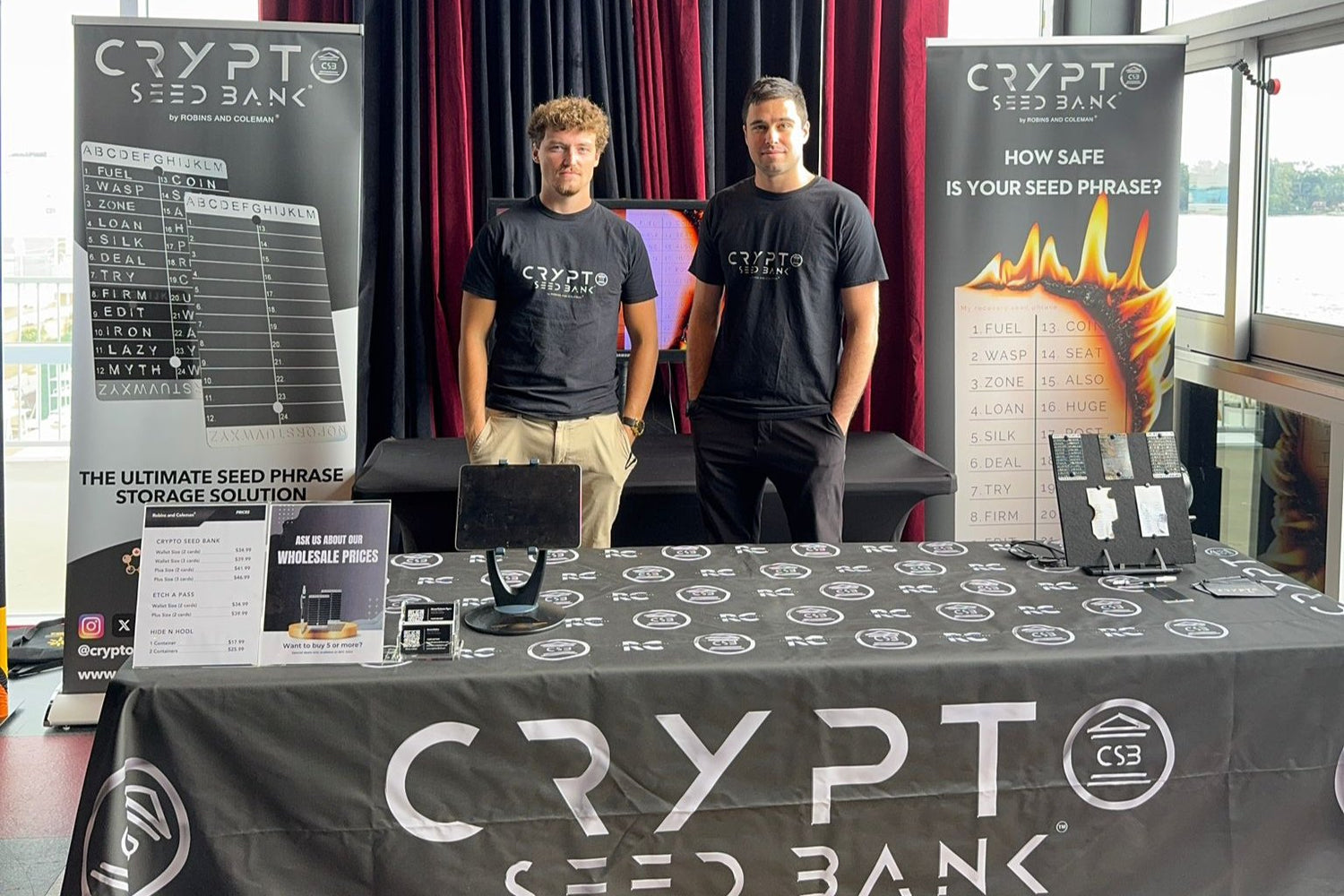
Crypto Seed Bank
Crypto Seed Bank is engraved metal storage for recovery phrases. It is not intended for passwords, PINs, or two-factor backup codes. For those, a general-purpose metal marking kit is the right tool.
- Two cards, 304-grade stainless steel. Wallet size is 0.5 mm thick; plus size is 0.7 mm.
- Integrated letter stencils. Stack the cards and engrave through the stencil on the top one, rather than freehand.
- Tungsten-tipped engraving pen included. No ink; the tip cuts the letters into the steel.
- Holds up to 48 words across the two cards, covering 12, 18 or 24-word phrases plus a 25th-word passphrase, with a line for a wallet nickname.
- Fire, water and corrosion resistant. Our blowtorch test shows engraved letters still legible after 1,300°C (2,372°F). Most house fires never reach that.
- Tamper-evident stickers and a keychain to seal and keep the pair together. Once a sticker is removed it cannot be reapplied and leaves a void mark.
- Works with any BIP-39 wallet: Ledger, Trezor, Coldcard, Bitbox, Foundation Passport and others.
Engraving takes over 30 minutes per card and needs a steady hand. That is the honest trade for something permanent. Full instructions are in the engraving guide.
You only need the first four letters of each word. The BIP-39 wordlist is designed so those four letters identify every word uniquely, which cuts the engraving work substantially.
Sources and further reading
Password strength and the crack-time table
[CONFIRM: cite the source for the table printed on page 7, with the year and the assumption it makes about hashing and hardware. Then link it. This is the single most checkable claim in the book, so it should be the best sourced.]
Guidance we drew on
- [CONFIRM: NIST Digital Identity Guidelines, on password length over complexity and on abandoning scheduled password changes]
- [CONFIRM: the BIP-39 specification, for valid recovery phrase lengths]
- [CONFIRM: anything else you or Emmet relied on]
Worth reading if you want to go deeper
[CONFIRM: three or four genuinely good resources. Keep this short; a long list looks padded and nobody reads past the fourth item.]
One promise
We will never ask you for a recovery phrase, a password, a PIN, or a backup code. Not by email, not by message, not on this website, and not by telephone. There is no circumstance in which we would need any of them.
If anyone contacts you claiming to be Robins and Coleman and asks for any of those things, it is not us. If a website looks like ours and asks you to connect a wallet or enter a phrase, it is not ours. We will never ask you to do either.
Questions: contact@robinsandcoleman.com